

What problems do FBclid, HSA and other parameters cause?
The biggest complication these URLs cause is multiple duplicates in your reports. A single page with identical content then appears repeatedly under different URLs. If you want to sort your pages by the most visited, you simply won’t be able to do so.
The list might look something like this:
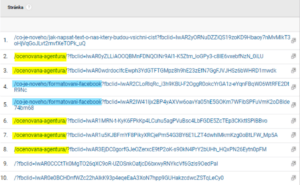
This is because some advertising systems insert so-called parameters into links. Parameters in a URL address begin with a question mark “?”. They can be generated by your own website, Google Translate or email services.
Note also that similar parameters from the Google Ads advertising system (formerly AdWords) do not appear in the report. You won’t find URLs such as “?utm_source” or “?gclid” there, because Google Analytics can remove them automatically.
Guide to removing parameters
You can remove unwanted parameters in 5 steps:
- Log in to your Google Analytics account.
- In Admin (gear icon), open the relevant Service and Data Selection.
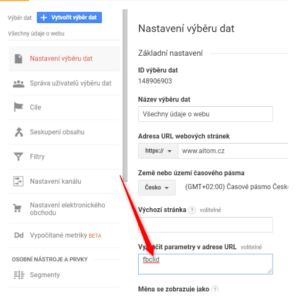
- Under Data Selection Settings, you will find the “Exclude URL parameters” field.
- Enter the parameters you want to exclude from the URL into the field, e.g. “fbclid”.
- Separate multiple parameters with a comma
Examples:
Multiple parameters separated by commas:
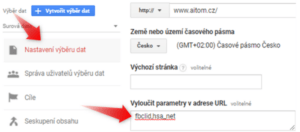
This ensures that all information after the question mark is removed from the stored URL. All other information, such as page views, source, etc., is recorded in GA as normal.
How can you find out which parameters are stored in Google Analytics?
If you want to find out which URLs with parameters are stored in Google Analytics, the easiest way to get the answer is as follows:
- Set a longer time period, at least 3 months.
- In the overview, select Behaviour.
- Select Site Content and All Pages.
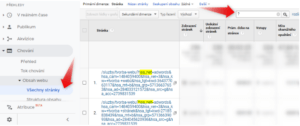
- Enter the question mark “?” into the search field.
- You will see the URLs that contain parameters.
- In our case, “?hsa_net” appears in the first few lines.
For example:
Who is behind these links?
You can easily identify the source of these unwanted links.
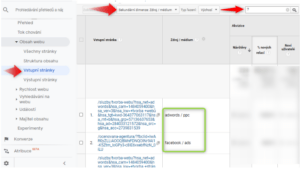
- Select the Landing Pages overview
- Add a secondary dimension: Source/medium
- Search for Pages with a question mark “?”
In this example, we found that the sources are AdWords and Facebook, followed by email campaigns:
Other parameters
For inspiration, we have compiled examples of parameters that have appeared and continue to appear in the Google Analytics accounts we manage:
- ?fbclid (Facebook)
- ?hsa_net
- ?hsa_cam
- ?force_format
- ?szn-session
- ?sa
- ?ct
- /translate_c?depth (?depth)
You may need to retain the information following the question mark. For example, in pagination (e.g. …?page=2) or with selected filters in an e-shop (e.g. …?color=red&site=L). Based on the URL information, it is then possible to identify which filters people are using on the website and ensure these parameters are not removed from the statistics.
Would you like to know in detail what Google Analytics says about your website? We’d be happy to advise you. Book a consultation with our specialists.